Posted by Andrew
The current version of Google Chrome supports for importing bookmakrs from Internet Explorer, FireFox and other browsers. You can just click menu Tools | Import Bookmarks and settings to complete the importing task. Unfortunately, if you want to move the Chrome bookmarks to a new computer, you will notice that Google Chrome does not yet have a way to export bookmarks. :-(
There is a FAQ in Google Chrome help:
Bookmarks: Export bookmarks
This feature is not available at the moment. If you imported your bookmarks from another browser, your data should still be available in the original browser.
If you search "Export Google Chrome bookmarks" in Google, you will find some programs to help you synchronize the bookmarks. However, there is a easy way to do that, you needn't install any programs!
Once you have installed Google Chrome on your computer, please open following folder with Windows Explorer:
- Windows XP:
- Windows Vista:
C:/Documents and Settings/{User Name}/Local Settings/Application Data/Google/Chrome/User Data/Default/
C:/Users/{User Name}/AppData/Local/Google/Chrome/User Data/Default/
In that folder, you will find a data file named Bookmarks:
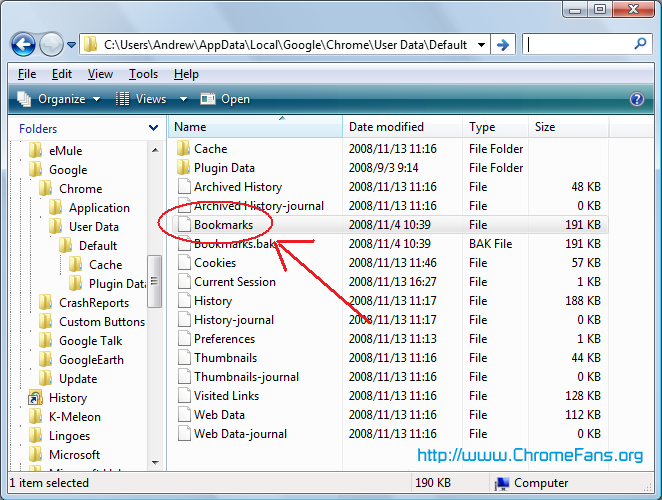
You can directly backup this file. To Synchronize your bookmarks to a new comptuer, just copy the file to the same folder on your new computer, and then restart Google Chrome, all of your bookmarks will now be there!
Other Resource
- Join our Chrome FORUM - Chat Chrome news, tips, themes, plugins...
- Why is Google Chrome browser not compatible with Windows 2000? - lots of people still have Windows 2000. Some people have Windows XP or Vista at home, at work it is Windows 2000, - corporate users are much more conservative.
- How do I add Wikipedia search engine to Google Chrome
- How do I adjust my security settings to high level?
- External link: GoogleChromeBoard - Export Google Chrome Bookmarks.
- External link: Google Offical Blog - Google Chrome now live.
- External link: NetSpring Data Recovery - allows you to quickly and easily recover deleted data files.
- Previous article: Why is Google Chrome browser not compatible with Windows 2000?
- Next article: Change Google Chrome User-agent String, Read Popular Magazines for Free
http://chromium.googlecode.com/files/chromechannel-1.0.exe
I'm steel obliged to open an other brother to easely bookmark pages on my google bookmarks.
Chrome -->Firefox/foxmarks -->Chrome
A little cumbersome, and a maintenance step I don't want to do more than once a month, but it will (finally!) get the job done. I'm tired of living in scattered data chaos. Can't find anything I've bookmarked and don't remember what's on what machine. Grrr.
How do you guys figure these things out?
What I don't understand is that on the target machine Chrome insists on seeing it as an Imported bookmarks file, which takes slightly longer to step to.
My question may already have been addressed, however, I didn't see the answer, and the things suggested didn't work or apply to my application.
I am attempting to copy all my favorites on my Vista Laptop in Google Chrome to my new PC which has Win 7. Any detailed help will be greatly appreciated.
Send to twentysevenmai2011 at yahoo dot com, there are NO typos in the email name.
Thanx, Spencer
I recommend you to have a look on the below url
http://www.viewsyntax.com/2012/05/import-and-export-chrome-bookmarks.html
Export Google Chrome bookmarks data file: Synchronize your bookmarks